IPTV Firestick Canada: Setup and Troubleshooting Guide
Set up IPTV Firestick Canada step by step: prepare your device, enter subscription details, test your network and fix common playback problems.
What has to be true before IPTV works on a Firestick in Canada? Most guides answer a different question. They show where to tap, then hand you a list of fixes to try once buffering starts, which is a bit like tuning a radio before checking whether it's plugged in. The things that decide whether your setup holds up are settled before the first login: sustained network throughput rather than a fast headline plan, a monthly data allowance with room for the resolution you intend to watch, and a provider that holds the rights to the channels it sells.
The Firestick doesn't create any of that. It's a small computer that runs apps and pulls a stream. It can't manufacture bandwidth, extend a data cap, or confer distribution rights on the service behind the picture.
Canadian viewing has already moved in this direction. The CRTC's 2023–2024 broadcasting highlights put streaming-only households at 29% in 2024, up from 23% in 2023 (CRTC broadcasting sector highlights). Those homes lean on Internet-connected devices as their main television source, which is exactly why a few checks are worth the ten minutes.
What You Need Before You Install
Four things, and the list is shorter than expected: an Amazon Fire TV device connected to a television, a home Wi-Fi connection that can hold the picture quality you plan to watch, your provider's credentials in the exact format they were issued, and a player app that accepts that format. Everything else is configuration.
Keep one distinction clear from the start. The Firestick decides nothing about licensing or legality. It runs an app and displays a stream. Whether the service behind that stream is authorized in Canada is a question about the provider's rights, not about the hardware in your HDMI port.
A Firestick streaming flawlessly from an unauthorized service is still unauthorized. A Firestick buffering on a properly licensed one usually has a home network problem. Work out which situation you're in before you pay anyone.
Five checks to run first:
- Confirm the model and Fire OS version. Menu wording shifts between the Stick Lite, 4K, 4K Max and Cube, and the install paths later in this guide assume you're looking at the right screen.
- Confirm what the television can display. For 4K you need a 4K-capable panel and an HDCP 2.2 compatible HDMI chain, and downscaling a 4K stream to a 1080p screen burns data for nothing.
- Confirm the Wi-Fi situation. Know whether the stick can reach the 5 GHz band and how far the router sits from the TV. A stick wedged behind a wall-mounted panel is a classic source of weak signal.
- Have the credentials copied exactly. Server address, username, password or activation code, pasted rather than retyped. Most invalid-login reports come down to a typo, a case error or a trailing space.
- Decide how many screens watch at once. A living room and a bedroom running simultaneously need two connections, and that's a subscription decision, not a device setting.
Tick those off and the rest moves quickly.
Planning Your Monthly Data Use
Start with the number that changes the arithmetic most, which is 4K. CRTC monitoring estimates streaming consumption ranging from about 50 MB per hour for audio to roughly 5 GB per hour for 4K video, and that spread is the whole reason data planning matters (CRTC communications monitoring report).
| Stream type | Data use |
|---|---|
| Audio streaming | 50 MB per hour |
| 4K video (upper benchmark) | 5 GB per hour |
| 4K, three hours daily, one viewer | about 450 GB per 30 days |
| 4K, three hours daily, two viewers | about 900 GB per 30 days |
Run your own total in four moves: estimate hours per device, multiply by the hourly rate for the quality you'll use, multiply by the number of people watching at the same time, then compare that figure with your plan's monthly allowance.
For scale, the CRTC reported average residential download usage of 353.4 GB per month in 2020, up from 243.9 GB in 2019, a rise of 44.9% (CRTC telecommunications monitoring report). One enthusiastic 4K viewer can outrun the average Canadian household single-handedly.
Three errors turn up again and again. Confusing Mbps with MB, which makes a 100 Mbps line sound like 100 MB per second of allowance. Forgetting simultaneous connections, so the total gets calculated for one screen while three are running. And leaving 4K selected on a display or HDMI chain that can't handle it, which spends data on pixels nobody sees.
A practical split works well: leave the living-room set to 4K for weekend sports, and keep the bedroom Firestick on HD. Same subscription, materially different monthly total.
Treat all of it as a planning estimate rather than a guaranteed bitrate. Adaptive streaming shifts with scene complexity, resolution and network conditions moment to moment.
Checking Rights and Verifying Your Provider
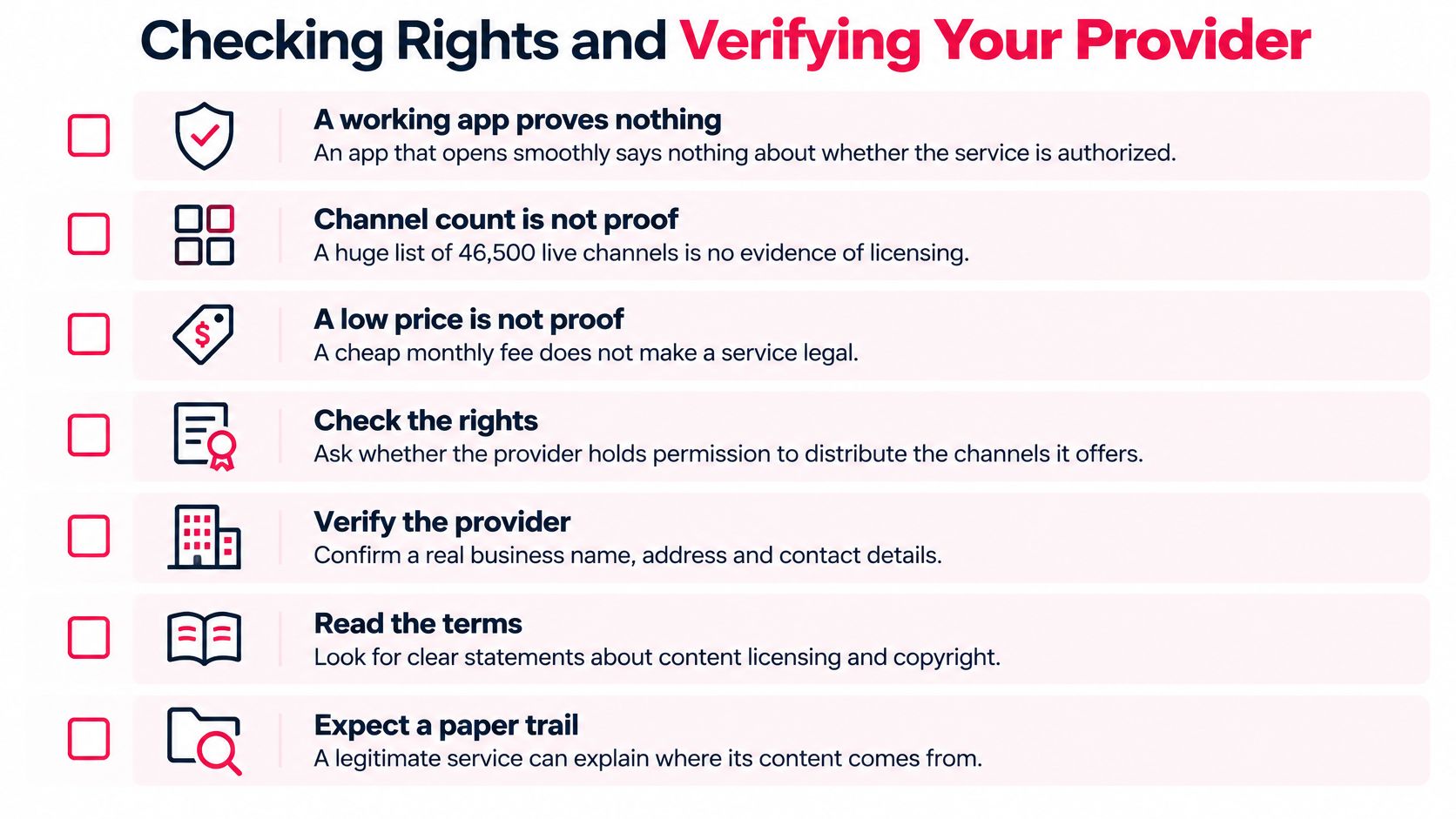
An app that opens cleanly, a channel list with tens of thousands of entries and a low monthly price prove nothing about authorization. The device doesn't decide it. The app doesn't either. What decides it is whether the provider holds permission to distribute the specific live channels, films and sports it sells, in this country.
The IIPA's 2025 Canada report identifies unauthorized redistribution of live television and on-demand programming through Canadian IPTV operations as an ongoing copyright concern. That's the practical reason to verify before money changes hands, not after playback fails.
Ask five things of any provider:
- A registered business identity. A legal name plus traceable contact details, not just a chat handle and a logo.
- Written refund and cancellation terms available before payment rather than after a failed signup.
- A plain explanation of the content and how it's licensed. If nobody can say where the channels come from, that silence is your answer.
- Secure payment and a receipt. A traceable method with documentation you can keep.
- No requirement to install modified or unofficial apps. Cracked players carry security risk and tell you something about how the operation is run.
One distinction gets misread constantly. Online undertakings providing audio-visual content in Canada may need to register with the CRTC, with that requirement applying from November 28, 2023, and the policy exempts undertakings with less than $10 million in annual Canadian broadcasting revenues, among other exemptions (CRTC online streaming policy). Registration isn't authorization for every channel on a lineup. It's one piece of paperwork, not a warranty.
Decide on verification before you subscribe. Once payment clears and a playlist loads, the motivation to ask hard questions evaporates.
How to Prepare Your Firestick and Install a Player
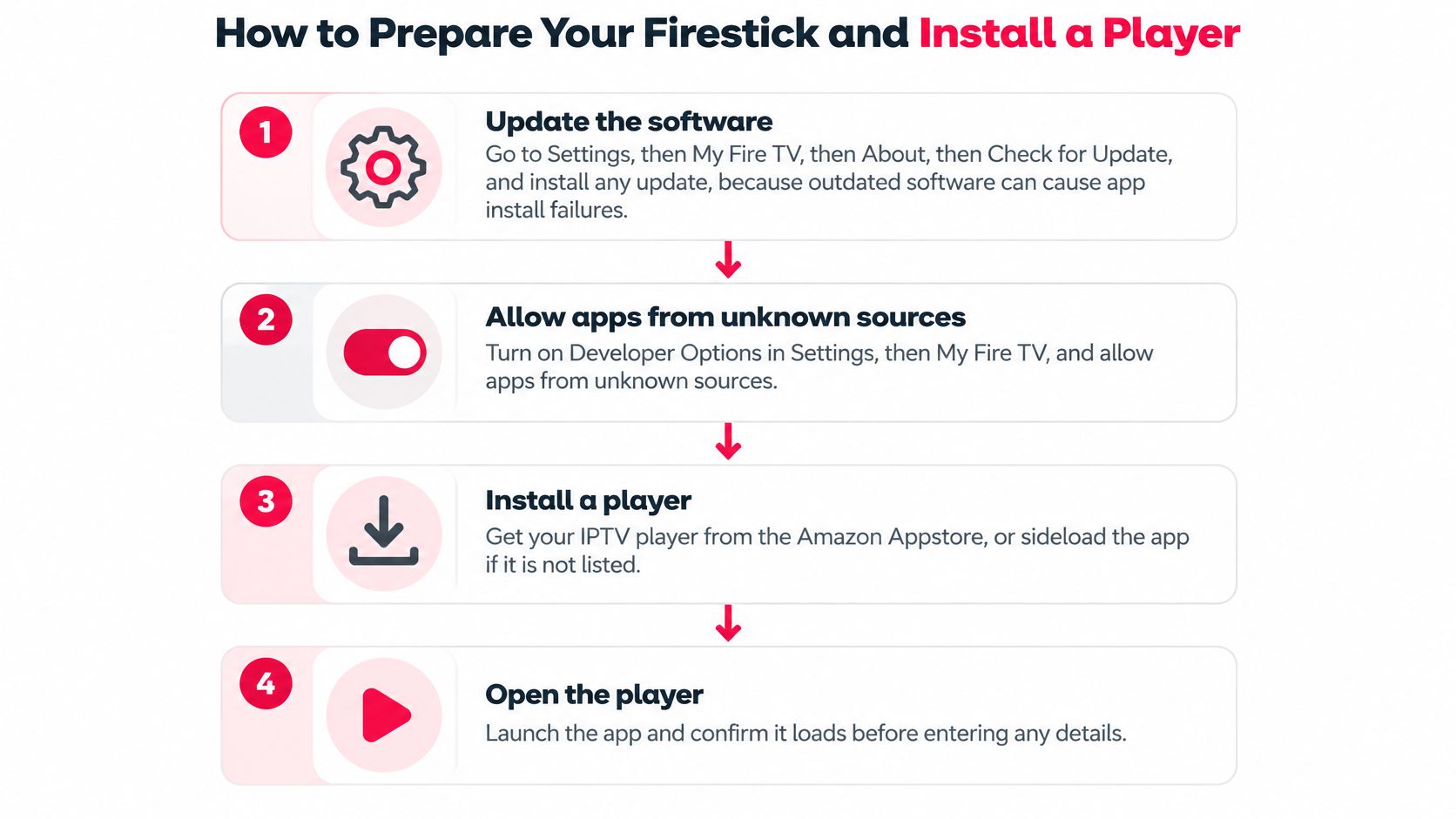
The sequence below is short. The slips are predictable, so each one gets named.
- Update the software. Settings, then My Fire TV, then About, then Check for Update, and install anything pending before going further. Outdated Fire OS is a common reason an app install fails midway, and people usually blame the app instead. The slip is skipping this because the device seems to be working fine.
- Allow installs from outside the Appstore. Settings, My Fire TV, Developer Options, then Install unknown apps, and enable it for the specific app you'll use to fetch the player, whether that's a file manager or Downloader. Fire TV blocks sideloading by default. The usual mistake is granting the permission to the wrong app. On some Fire OS builds, Developer Options only appears after you highlight the device name in the About screen and press the centre button several times.
- Choose a player that matches your login method. If your provider issued a server address with a username and password, or an M3U playlist link, pick a player that accepts both so you aren't locked in. Install from the Amazon Appstore where it's listed, or from the developer's own site where it isn't. Modified builds of popular players circulate widely and add risk for no benefit.
- Open it before entering anything. Launch once and confirm the app reaches its welcome or add-playlist screen. A crash here is an install problem, not a credentials problem, and knowing which one you're facing shortens troubleshooting considerably.
- Restart the device. A restart after changing developer settings ensures the new permissions are active when the player asks for them.
Here's the same routine on a real Fire TV interface, including the Developer Options menu.
The sign that setup worked
You're done when the player opens to a login or activation screen with no error messages on it. Not when the app finishes downloading. The distinction matters because a half-configured player and a broken subscription look identical if you only glance at the screen.
How to Enter Your Subscription Details
Credentials usually arrive in one of three forms: a server address with a username and password, an M3U playlist link, or an activation code tied to the device. Know which one you hold before opening the app, because the screen you need changes with the format.
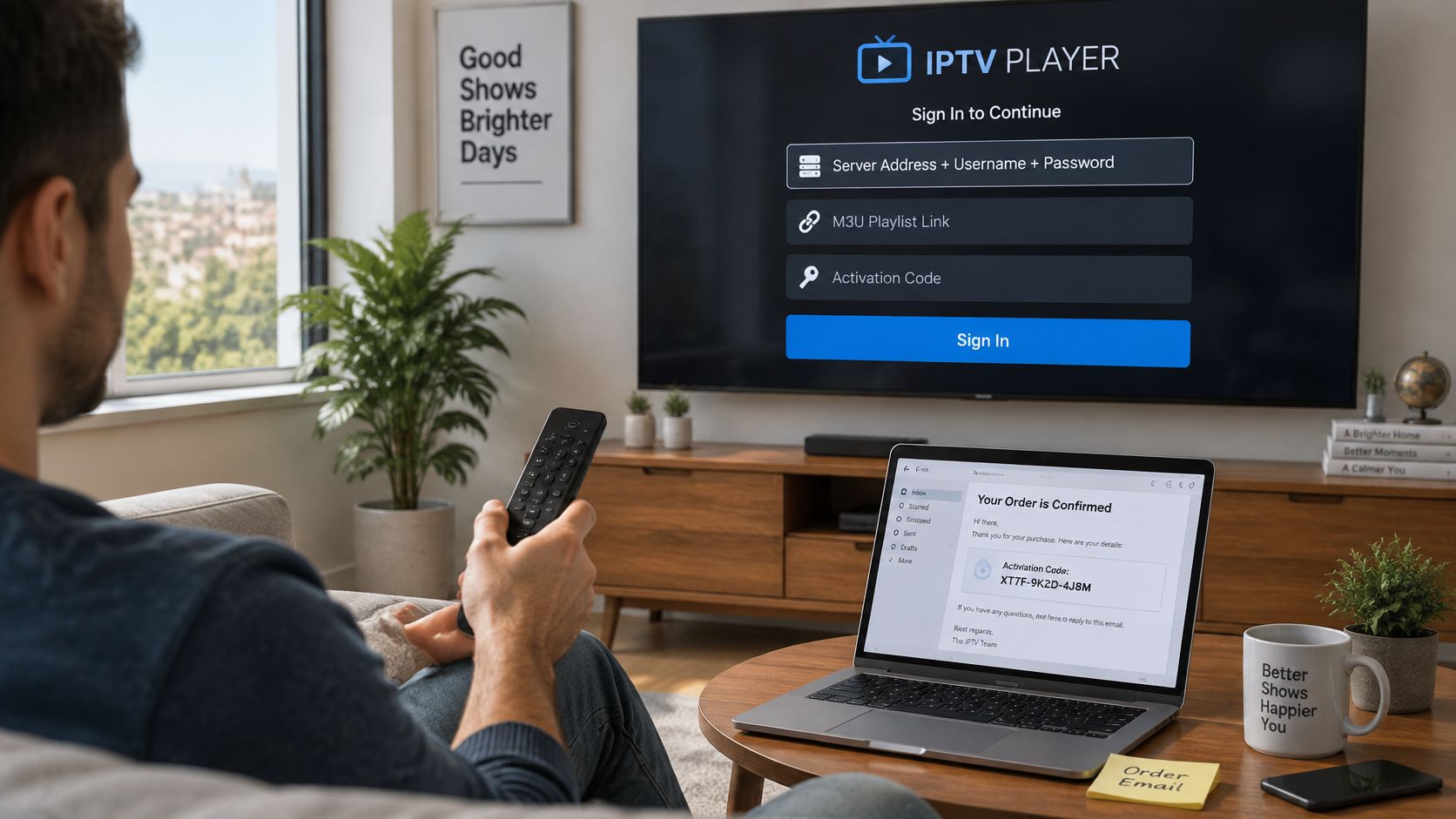
The fields come in the same order across most players:
- Find the add-playlist or settings screen. On a fresh install it's usually the first thing you see.
- Enter the server address exactly as supplied. Include the http or https prefix and any port number. A missing port causes the app to save, then load nothing at all.
- Type the username and password. Both are case sensitive. Paste from the original message rather than retyping, then check for a trailing space picked up during the copy.
- Save and wait. A large channel list can take a minute to populate on first load, so don't re-save while it's working.
- Test three categories. A Canadian news channel, a sports channel and an international category. If two load and one doesn't, the problem sits with that category, not your login.
Worth knowing: a channel list that loads but shows a blank guide usually means the EPG link didn't come across with the playlist. The subscription is fine, the guide just needs its own URL.
The order mirrors how providers onboard subscribers. Rove IPTV, for instance, describes the path as choosing a channel package, receiving login credentials, installing a player application, entering activation information, then streaming, which is why the credentials arrive before the player does and why having them ready shortens everything.
One last check before adding a second Firestick: the device limit on your plan. Adding a third screen to a two-connection subscription throws a device-limit error that reads like a login fault and isn't.
Your confirmation point is a live channel playing with current listings in the guide.
Fixing Buffering, Login Errors and Black Screens
Evening buffering is the complaint that brings the majority of readers here. Before you rebuild anything, take the cheapest test on the list: restart the Firestick, reopen the player, and try the same channel again. Memory pressure and a stale session account for a share of failures that get blamed on the provider.
Login errors come next, and they're almost always clerical. Check the server address for protocol and port, check the username and password for case and stray spaces, and confirm the subscription is active. A black screen after a successful login points elsewhere: check the television input, reseat or swap the HDMI cable, and drop the player's output to 1080p if 4K is selected on a display that can't take it.
For buffering, work through the network in three stages. Confirm the Firestick is on a high-speed Wi-Fi network and that the TV and HDMI chain support the intended resolution. Run speed and latency tests during your household's busiest period, not at eleven in the morning. Then test the stream at target quality while other devices are active. Amazon specifies at least 15 Mbps for 4K playback on Fire TV (Amazon Fire TV connection requirements), and latency in the 35 to 42 ms range or lower is generally treated as the target for video streaming.
Test at 8 p.m., not at 11 a.m. A connection that sails through an idle afternoon can still choke when the neighbourhood gets home.
National access figures look reassuring until you notice what they measure. 97.1% of Canadian households had access to broadband meeting 50/10 Mbps in 2024, rising to 97.3% in 2025 (Statistics Canada). Availability isn't reliability. What matters at the television is Wi-Fi placement, evening congestion, router queueing and device configuration, none of which appears in a coverage statistic.
| Symptom | Likely cause | First fix |
|---|---|---|
| Login fails with invalid credentials | Typo, wrong letter case or extra space | Retype or re-paste the server, username and password |
| Channel list stays empty after saving | Wrong server address, protocol or port | Check http or https and the port number, then reload |
| Black screen after login | Wrong TV input, faulty HDMI cable or 4K output on an unsupported display | Switch HDMI input, lower output to 1080p and check the display |
| Frequent buffering in the evening | Congested Wi-Fi or heavy household traffic | Move the Firestick closer to the router, use 5 GHz if available, pause other downloads |
| Buffering on one channel only | Source-side problem with that channel | Try another channel; contact support if it persists across devices |
| Stuttering on 4K only | Sustained speed below about 15 Mbps per stream | Run a speed test during peak hours and drop to HD if needed |
| Works on one device but not another | Outdated player or Fire OS on the failing device | Update the player and Fire OS, then restart the device |
Two pitfalls deserve naming. Measuring only idle latency produces a number that looks fine and predicts nothing. Tucking the Firestick behind the television raises Wi-Fi attenuation, and the 2.4 GHz band in an apartment building is crowded enough to break a stream on its own. If one channel fails on every device at every hour, the fault probably isn't in your house, so send support the channel name, time, device model and exact error text instead of changing settings that were working.
Compare ROVE Canada Plans and Choose Your Next Step
Two decisions sit in front of you: set the Firestick up now, or compare plans first. If you're still choosing, look at the 12 Months IPTV Subscription Canada for a single-screen household, and the 2-device version if a living room and a bedroom will run at the same time.
Match the device count to the number of screens you'll run simultaneously, not the number you own. A second television may need a higher allowance, and a plan that looks generous on paper can hit a device-limit error the first Friday night two people watch different things.
Verify current pricing, trial availability and refund terms on those pages rather than trusting any article, this one included. Rove IPTV lists Smart TVs, Android TV boxes, Firestick devices, phones, tablets, Windows laptops, Mac computers and IPTV player applications among supported hardware, so check that list against your own equipment. A 7-day money-back guarantee gives you a real window to test whether your evening network holds. The verification questions apply to every provider, this one included.
Then pick a next step: run the setup sequence with credentials already in hand, or request a trial first and test at 8 p.m. on a weekday before committing.
Frequently Asked Questions About Firestick IPTV in Canada
What does a device limit reached error mean
It means your plan's simultaneous connections are all in use. Close the player on another device, or check the device count on your plan before adding another Firestick.
Why did my login stop working after renewal
A renewal can issue new credentials or a different server address. Copy them again from the latest message and reload the playlist rather than reusing the old details.
Can one subscription run on a second TV
Only if the plan covers that many devices. Rove IPTV lists a separate 2-device plan, so check the plan details before buying a second stick.
What if the player disappears after a Fire OS update
Reinstall it from its official source, re-enable installs as described in the setup steps, and re-enter the same credentials. If the same error returns, contact support with your Fire TV model and the exact error text.
Rove IPTV delivers Canadian live channels, sports networks, movies and international programming over the Internet connection your home already has, on the Firestick plugged into your television, with a setup path that starts at a package choice and ends with a working player. If the checks in this guide have left you with a clear picture of your network, your data allowance and the questions worth asking a provider, bring those questions to us. Visit Rove IPTV to compare subscription options, check supported devices and see whether a trial fits what you're planning to watch.